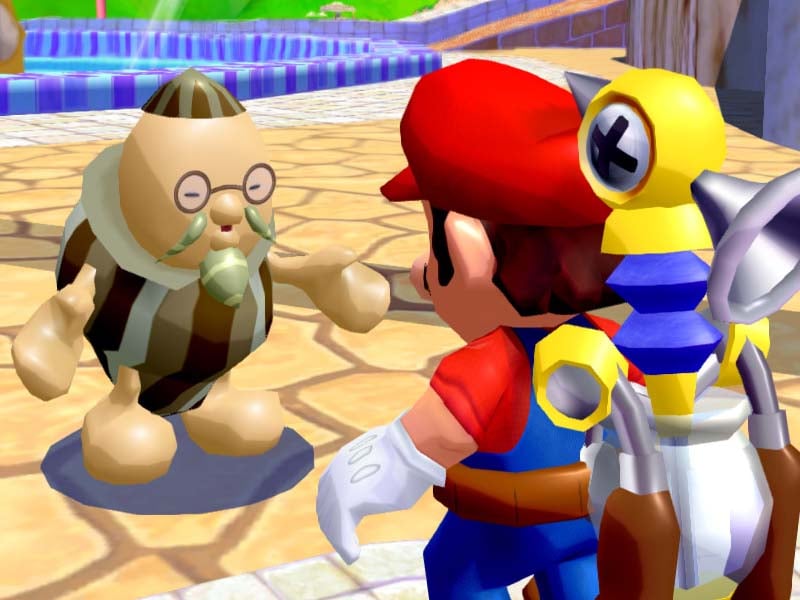
If you’re a fan of retro gaming, you’re in for a treat: GameCube games look incredible when played on RetroArch. This powerful emulator can upscale graphics, smooth textures, and add modern features like save states and custom shaders to make your old favorites shine on today’s high-res displays. Whether you’re revisiting “Super Smash Bros. Melee” or “The Legend of Zelda: The Wind Waker,” RetroArch can breathe new life into these classics.
Why RetroArch?
RetroArch isn’t just a typical emulator. It’s a powerful multi-platform program that runs multiple cores, allowing it to emulate a variety of systems, including the GameCube via the Dolphin core. What makes RetroArch stand out is its vast customization options and ability to enhance the visual quality of older games. You can upscale resolution, apply texture filters, and use shaders to make the visuals crisper and more detailed.
Setting Up RetroArch for GameCube

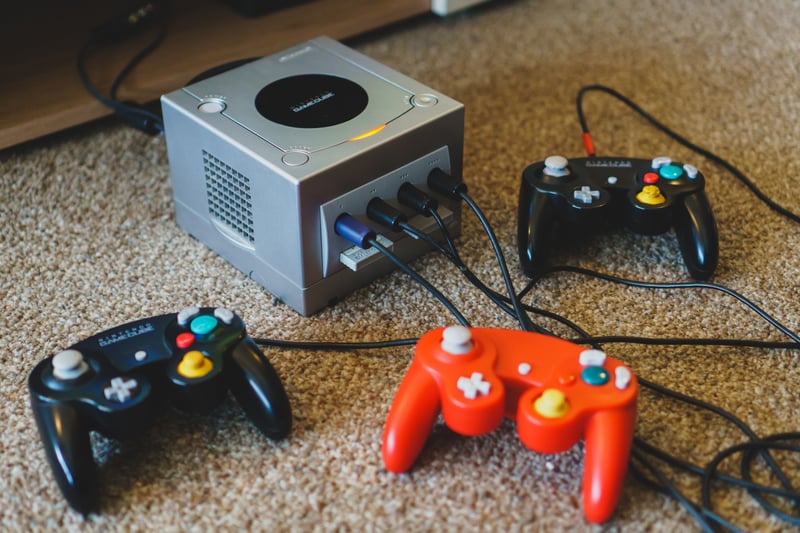
Here’s how to get your GameCube games looking amazing with RetroArch:
Step 1: Download RetroArch
First, head over to the official RetroArch website and download the latest version for your operating system (Windows, macOS, Linux, or even Android). Install it following the provided instructions.
Step 2: Install the Dolphin Core
Once you’ve launched RetroArch, you need to install the Dolphin core, which is responsible for GameCube and Wii emulation. Here’s how:
- Go to the Main Menu.
- Select Online Updater > Core Updater.
- Scroll down to Nintendo – GameCube/Wii (Dolphin) and install it.
Step 3: Load Your GameCube Games
Now that the Dolphin core is installed, it’s time to load up some games:
- Go to Load Content.
- Find your GameCube ROMs (you’ll need legally obtained copies of your games).
- Choose the Dolphin core to run them.
Step 4: Configure Graphics Settings
This is where the magic happens! RetroArch gives you a ton of graphical options to make your GameCube games look modern. To access them:
- Head to the Settings menu.
- Select Video to change the resolution, apply anti-aliasing, and enable widescreen hacks.
- Experiment with different shaders to smooth out textures or give the game a unique look. Popular ones include CRT or xBRZ.
Step 5: Customize Controls
If you’re using a controller, you’ll want to map the buttons for the best experience:
- Go to Settings > Input > Port 1 Controls and configure it to match your GameCube controller layout (or any controller of your choice).
Step 6: Enable Save States
A great feature of RetroArch is the ability to save and load states anytime, anywhere in the game. To enable it:
- Press F2 to save a state and F4 to load it. You can also set custom hotkeys in the Input settings.
Tips for the Best Experience
- Upscaling: Bump up the internal resolution to at least 2x or 4x for a crisper image on modern screens.
- Widescreen hacks: Some games can be forced into widescreen mode. Play around in the video settings to stretch games while maintaining the original aspect ratio.
- Enhance textures: Some community-made HD texture packs can be loaded for certain games, giving them a modern polish.
Final Thoughts
Whether you’re reliving old memories or discovering GameCube classics for the first time, RetroArch’s Dolphin core delivers a stellar experience. With upscaling, shaders, and modern features like save states, you can play your favorite games in stunning clarity. It’s retro gaming, redefined!
So, what are you waiting for? Grab that copy of Super Mario Sunshine, fire up RetroArch, and enjoy your GameCube games like never before!